Choose Image
My first steps
Create a Diggle
- Interactive slides
- Content slides
- Create a test with a passing grade
- Create and run a quiz
- Customize logo
- Collaborate on content creation
- Merge slides
- Select question types
- Colors and styles
- Add images
- Custom fonts
- The Content Tab
- The Design Tab
- Import from other Diggle
- Import from PPT or PDF
- Leaderboard Calculation
- Register Participant Information (RPI)
- Quiz Points Calculation
- Interactive slides
- Content slides
- Create a test with a passing grade
- Create and run a quiz
- Customize logo
- Collaborate on content creation
- Merge slides
- Select question types
- Colors and styles
- Add images
- Custom fonts
- The Content Tab
- The Design Tab
- Import from other Diggle
- Import from PPT or PDF
- Leaderboard Calculation
- Register Participant Information (RPI)
- Quiz Points Calculation
Question types
Present live
- Present using Fullscreen
- Interactive Result Layouts
- Display the QR code
- Open and Close Submission
- Show results on devices
- Sneak Peek functionality
- Change Navigation Pace
- Hide Login Details
- Share the presentation screen
- Present on a Separate Display
- Present using Backstage
- Presentation Modes
- Navigation Modes
- Quick Onboarding
- Present using Fullscreen
- Interactive Result Layouts
- Display the QR code
- Open and Close Submission
- Show results on devices
- Sneak Peek functionality
- Change Navigation Pace
- Hide Login Details
- Share the presentation screen
- Present on a Separate Display
- Present using Backstage
- Presentation Modes
- Navigation Modes
- Quick Onboarding
Invite participants
Results & Reports
Collaborate with others
AI - Diggle Buddy
Company Workspace
Account and settings
GDPR
Security
API & Integrations
FAQ & Troubleshooting
- Join code has expired
- How do I use Diggle for remote learning and surveys?
- My QR code isn´t displaying
- Presentation screen is not displayed
- The leaderboard isn’t calculating scores correctly
- How do I recover a deleted Diggle or session?
- My participants are seeing the wrong slide
- How do I use Diggle for remote learning and surveys?
- How to switch between numbers and percentages
- How to interact with the result layouts
- Join code has expired
- How do I use Diggle for remote learning and surveys?
- My QR code isn´t displaying
- Presentation screen is not displayed
- The leaderboard isn’t calculating scores correctly
- How do I recover a deleted Diggle or session?
- My participants are seeing the wrong slide
- How do I use Diggle for remote learning and surveys?
- How to switch between numbers and percentages
- How to interact with the result layouts
Table of Contents
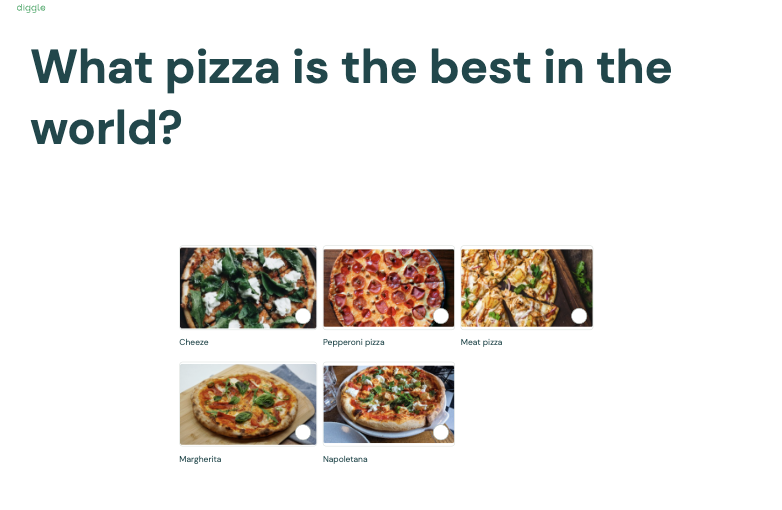
The “Choose Image” question type lets participants select from various images as their response. This is particularly useful when visual input is essential, such as design workshops or product evaluations.
Example: Imagine you’re conducting a branding workshop and ask participants to select which logo best represents a company’s values.
Each image represents a different logo, and participants choose the one they feel is most appropriate, sparking discussion on brand perception.
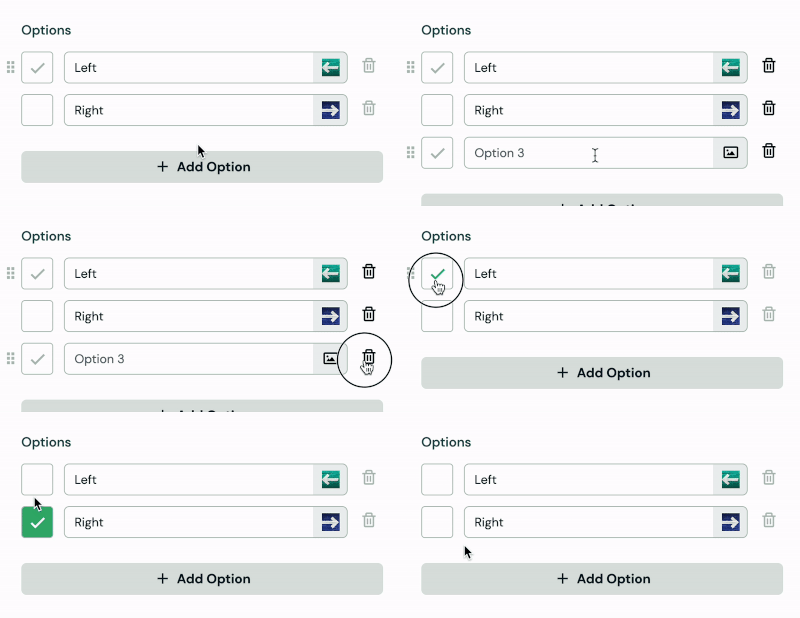
Adding images and options
You can upload your images in the Options fields by clicking the image icon for each option.
You can insert text that will accompany the images in the text fields.
If you have a question with a correct answer, use the checkmark to mark the option as correct.
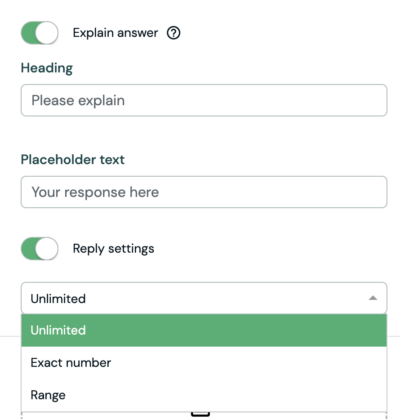
Explain answer
When Explain answer is toggled on, the participants can write a text explaining their choice.
Reply settings
You can customize the number of replies by setting a specific number, choosing a range, or allowing unlimited responses.
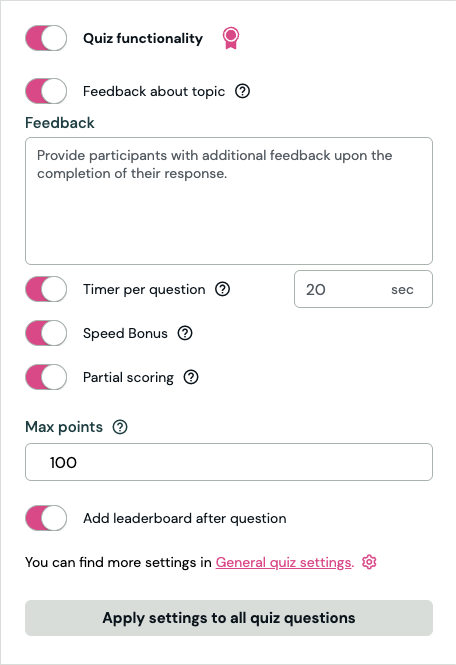
Quiz functionality
Select Order is a quiz-compatible question type.
You can define specific settings in the Builder Content tab. To read more about the Quiz functionality, click here.

When using the quiz functinality, you need to set at least one correct answer
Feedback about topic
If enabled, participants receive feedback that helps them understand the topic better, regardless of whether their answer is correct or incorrect.
For example, in a history quiz about World War II, if a participant selects the wrong date for D-Day, the feedback could explain, “D-Day occurred on June 6, 1944, marking the Allied invasion of Normandy. This was a turning point in the war.”
This way, the participant learns the correct information immediately, reinforcing their understanding.
Timer per question
You can enable this setting to set a time limit (in seconds) for this specific question, locking the participants from answering the question when the time runs out. If you want to set a time limit for the full Diggle, use the General quiz settings.
Speed bonus
If the Timer per question setting is active, you can add an additional competitive element by toggling on Speed bonus. When Speed Bonus is enabled, participants can earn bonus points based on the speed of their answers. The faster they provide the correct answer, the more bonus points they receive in addition to their regular score.
Partial scoring
If your quiz has multiple correct answers, you can turn on the Partial scoring setting to allow participants to earn points for each correct answer. However, selecting any incorrect answer gives 0 points.
Max points
You can change the maximum number of points the participants can get from the question. This allows you to set different max points per question based on, for example, the level of difficulty.
Add leaderboard after question
By toggling this on or off, you can add or remove the leaderboard after the slide that you’re currently on.
Apply settings to all quiz questions
If you are happy with the changes that you made to the settings, use this button to apply all the changes you’ve made to all the quiz questions in your Diggle.
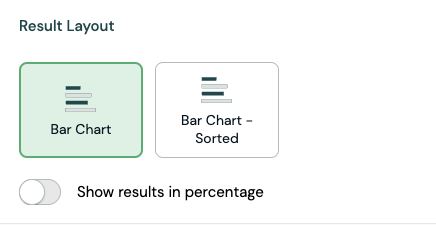
Result layout
The “Choose Image” question type offers two result display options:
Bar Chart Displays a horizontal bar chart with options in your set order.
Bar Chart – Sorted Also shows a horizontal bar chart but sorts options by popularity, with the most chosen at the top